How to Change DNS Settings on Android
Find Android Private DNS, choose a verified provider hostname and troubleshoot captive portal or managed networks.
Quick answer: On most modern Android phones, open Settings, search for Private DNS, and choose Automatic or Private DNS provider hostname. If entering a provider hostname, use the exact hostname that provider publishes—not a numeric IP address. Save and test internet access. Android’s Private DNS is not the same setting as entering a DNS IP address in Windows.
Google recommends leaving Private DNS enabled on supported networks. Android menus vary by manufacturer, Android version and management policy. Some providers or restricted networks prevent Private DNS from working. On a work-managed device, your administrator may prohibit changes.
Understand the two DNS methods
Android’s Private DNS typically configures a DNS-over-TLS provider by hostname for eligible connections. It encrypts DNS questions and answers but does not encrypt every data transfer or prevent all tracking. A regular Wi-Fi connection may also have DNS settings associated with its network configuration; changing those is a separate advanced task and can require static IP configuration.
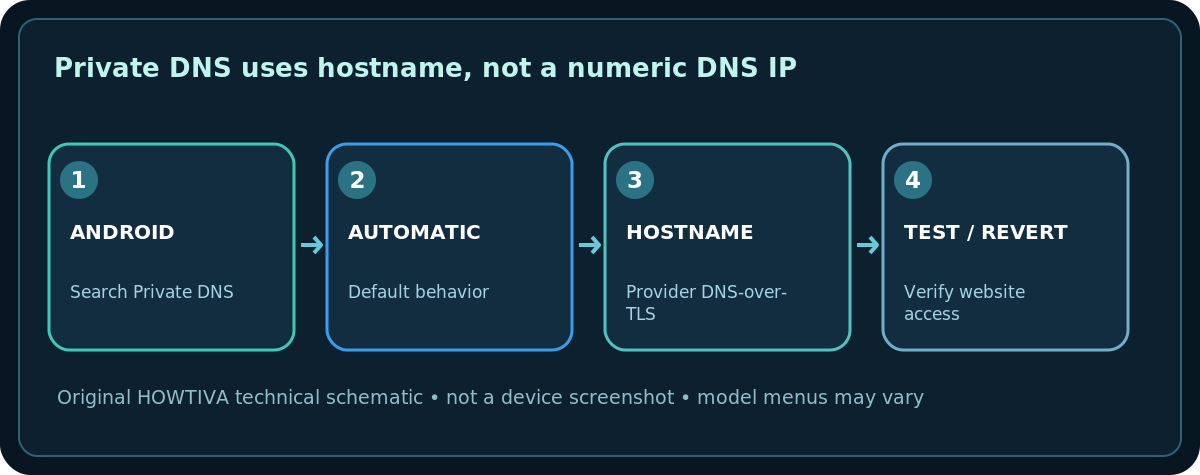
Use the built-in Android Private DNS setting
- Open Settings on the phone.
- Search settings for Private DNS. On Google’s reference Android interface, the route is Network & internet > Private DNS. If not present, consult your phone manufacturer’s settings search and documentation.
- Select Automatic to use the system’s default behavior, Off if your policy specifically requires it, or Private DNS provider hostname if you have a compatible provider’s published hostname.
- If choosing a custom provider, paste only its verified hostname in the field and tap Save. A numeric address such as
1.1.1.1is not the required syntax for this Private DNS hostname field. - Open two reliable sites on both Wi-Fi and mobile data, where allowed, to confirm resolution is functioning. If not, revert to Automatic and try again.
Samsung Galaxy, Pixel and other differences
Pixel and many Android phones use Google’s wording, but Samsung Galaxy may place Private DNS under Settings > Connections > More connection settings. Software generations and regional carrier builds differ: the search function is safer than claiming a single menu route applies to everyone. In a device managed by an employer or school, follow that organization’s policy rather than bypassing a restricted setting.
What if you need a DNS IP for one Wi-Fi network?
Some Android devices expose an Advanced or IP settings editor on a saved Wi-Fi connection. Switching IP settings from DHCP to Static may require a correct local IP address, gateway and network prefix—not only DNS 1/DNS 2. Guessing those values can break local connectivity or create an address conflict. Prefer the supported Private DNS route for encrypted resolver selection or configure the router if you are the authorized administrator and want whole-home policy. Availability of per-network DNS fields is device-specific.
If Private DNS stops working
- Can connect to Wi-Fi but websites fail after setting hostname: Confirm spelling and whether the provider’s DNS-over-TLS endpoint is available. Revert to Automatic and check whether service returns.
- Hotel, airport or public Wi-Fi portal won’t load: Temporarily use the normal network configuration to complete the captive-portal login, then restore your chosen setting if permitted.
- Only corporate apps fail: Private/internal domains may require company DNS. Restore the IT-managed settings and contact your administrator.
- Change has no visible effect: A browser or app can use a separate secure DNS feature. Check its documentation rather than assuming Android’s setting controls every app.
- Private DNS option is missing or greyed out: Android version, manufacturer UI, VPN and managed-device restrictions can alter availability. Don’t install random system-setting apps to force it.
Privacy and security limitations
Encrypted DNS protects name requests on supported paths, but it is not a general anonymity tool and does not prove an app or browser is private. A DNS provider can see queries it handles, subject to its published policy. Choose an operator you trust and check whether its filtering blocks sites your household needs.
Frequently asked questions
Can I enter 8.8.8.8 into Private DNS provider hostname?
No. That field expects the hostname of a supported encrypted DNS service, not an IPv4 address.
Will Private DNS fix weak Wi-Fi signal?
No. Radio range, channel interference and router placement are separate issues.
Does this setting apply to mobile data too?
Private DNS is designed to work on networks that support it, but behavior can vary by carrier, device, VPN and captive portal.
Sources & Further Reading
- Google — Manage advanced network settings on Android (checked 2026-10-27).
- Microsoft — Essential network settings and tasks in Windows (checked 2026-10-27).
Use the checklists as you go, and confirm the result before moving on to a more involved repair.