How to Change Your Wi-Fi Network Name
Change the SSID on the router that broadcasts your Wi-Fi, not merely the nickname in an app.
Quick answer: To change your Wi-Fi network’s name, sign in to the router or mesh system that controls your wireless network, open its Wi-Fi / Wireless / Main Network settings, edit the Network Name (SSID) field and select Save or Apply. Your wireless devices may disconnect and need to join the new name. Changing the name on your phone or renaming the router inside an app is not the same action.
The exact menus depend on router brand, model and firmware. These are general owner/administrator instructions, with verified examples for TP-Link, NETGEAR and ASUS. If the equipment belongs to an ISP, landlord or workplace, confirm you have permission and use the provider’s approved app or administrator process.
Before you rename the Wi-Fi: three checks
- Identify the device providing Wi-Fi. Some homes have a separate ISP modem, router, and mesh system. If your phone connects to the mesh SSID, change its name in the mesh controller, not a separate modem’s unused Wi-Fi settings.
- Keep your administrator login available. The router’s admin password is different from the Wi-Fi connection password. Use the official device app or the genuine local management address provided on its label/manual.
- Plan for temporary disconnection. Prefer an Ethernet-connected computer for the edit, if practical. Record the existing SSID and password privately so you can undo a mistaken change.
Change the SSID from the router’s web settings
- Connect your computer or phone to the router’s network. If possible, use Ethernet so that the editing device stays connected while wireless settings restart.
- Open the official local router management page or the manufacturer’s app, using the address named in your model’s instructions. Do not enter admin passwords on an unknown search-result website.
- Sign in with your router administrator credentials.
- Open a section called Wi-Fi, Wireless, Wireless Settings or Main Network. Find the SSID / Network Name field for the network you actually use.
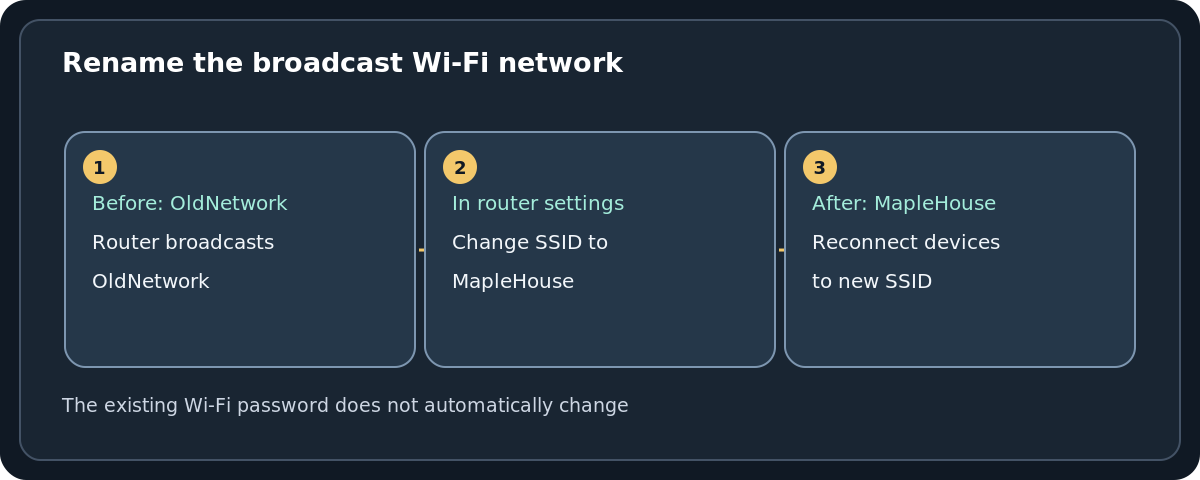
- Enter a recognizable new name such as MapleHouse (an illustrative example, not a real network). Avoid including your full name, apartment number or other private identifying details.
- Choose Save or Apply. Wait for the wireless service to reappear, then select the new SSID on your devices and reconnect with the existing Wi-Fi password, unless you also changed it.
Where the setting is on common router brands
- TP-Link: Supported models use tplinkwifi.net or the Tether app. TP-Link documents Advanced → Wireless → Wireless Settings on some models and More → Wi-Fi Settings in Tether on compatible routers. Exact screens vary with model and firmware.
- NETGEAR: On supported models, visit the router’s documented management site and open Wireless (or Settings → Wireless Setup on some). Change Name (SSID) and choose Apply.
- ASUS: Router app or web GUI; depending on firmware use Network → Main network profile or Wireless → General, then edit Network Name (SSID) and Apply.
These addresses and menu examples belong to particular vendors and are not universal router login pages. A provider-supplied gateway or mesh product may require its own official app and may block web-based changes.
One name or two names for 2.4 GHz and 5 GHz?
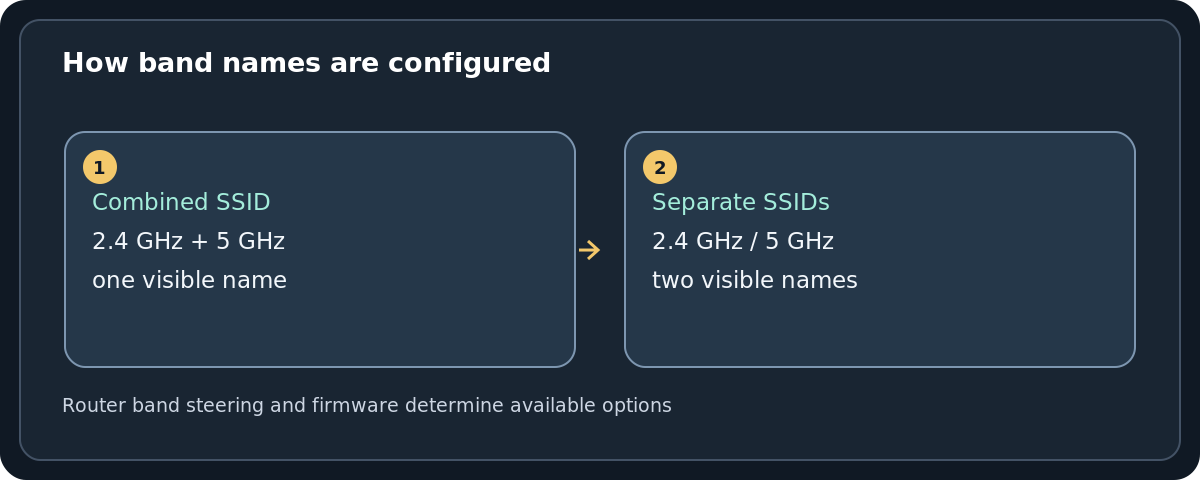
Some routers use one combined network name through Smart Connect or band steering; others show separate SSIDs for 2.4 GHz, 5 GHz and sometimes 6 GHz. If band steering is enabled, you may only need to edit one common SSID. If you deliberately keep two names, change the correct band and check whether smart home accessories depend on 2.4 GHz. Do not disable bands, alter channels or change security mode just to rename a network.
What changes and what stays the same?
Renaming the SSID changes the label devices see when choosing Wi-Fi. It does not by itself change the router administrator password, internet service account, or network encryption key. Depending on the device and how it saved the network, clients can treat the renamed connection as a different Wi-Fi profile. Plan to update laptops, smart TVs, printers, cameras, speakers and other accessories.
If your old SSID remains visible, it might be a second radio band, a separate guest network, a mesh extender that did not sync or a neighboring network with a similar name. Check your equipment’s actual configuration before deleting anything.
Troubleshooting after a rename
The settings page closed as soon as I saved
Your computer may have lost Wi-Fi because the original network name disappeared. Open the Wi-Fi list, choose the new name and rejoin. If you are managing the router wirelessly, losing the management session during a rename can be normal.
My printer or camera is offline
Many accessories retain the old SSID. Use each manufacturer’s supported Wi-Fi setup procedure to join the renamed network. For 2.4-GHz-only equipment, check whether its compatible radio is enabled and how your mesh system handles band steering.
The router app says Rename, but my Wi-Fi still has its old name
Some apps let you rename the router device as it appears in the app; TP-Link explicitly distinguishes that label from the SSID. Find Wi-Fi Settings → Network Name rather than a device nickname field.
I cannot sign in to the router
Verify you are on the correct local network and using admin credentials rather than the Wi-Fi passphrase. ISP-controlled hardware may require its official app or support. Avoid factory resetting a shared router just to change its name; that can erase service configuration.
Frequently asked questions
Does changing the Wi-Fi name change the password?
No, not unless you also change the password field. Devices usually need to select the new SSID again and then enter the same wireless passphrase.
Will my internet speed improve if I rename Wi-Fi?
Not simply from the name change. SSID selection is about identifying the network, not speeding up the connection.
Can I do this from an iPhone or Android phone?
Yes, when your router offers a browser-based admin page or an official phone app. Editing the phone’s own remembered network name is not enough to rename the router’s broadcast SSID.
Should I hide the SSID instead?
Hiding it is a different setting and not a substitute for a strong Wi-Fi password. It also complicates joining for new devices; leave broadcast enabled unless you have a specific technical requirement.
Sources and further reading
- TP-Link Support: How to Change Wi-Fi Settings on a TP-Link Wireless Router (checked 2026-10-27).
- ASUS Support: How to modify Wireless (WiFi) Name and Password in ASUS Router? (checked 2026-10-27).
- NETGEAR Support: How do I change my NETGEAR router WiFi password or network name (SSID)? (checked 2026-10-27).
- TP-Link Support: How to Rename Your TP-Link Router, Extender, and Other Devices in Tether (checked 2026-10-27).
- NETGEAR Support: Why can’t I connect after changing SSID or password? (checked 2026-10-27).
Use the checklists as you go, and confirm the result before moving on to a more involved repair.